Sections in this article
- How to Create a New Appointment Schedule
- Viewing Appointment Schedules
- View Public Booking Form
- How to Edit an Appointment Schedule
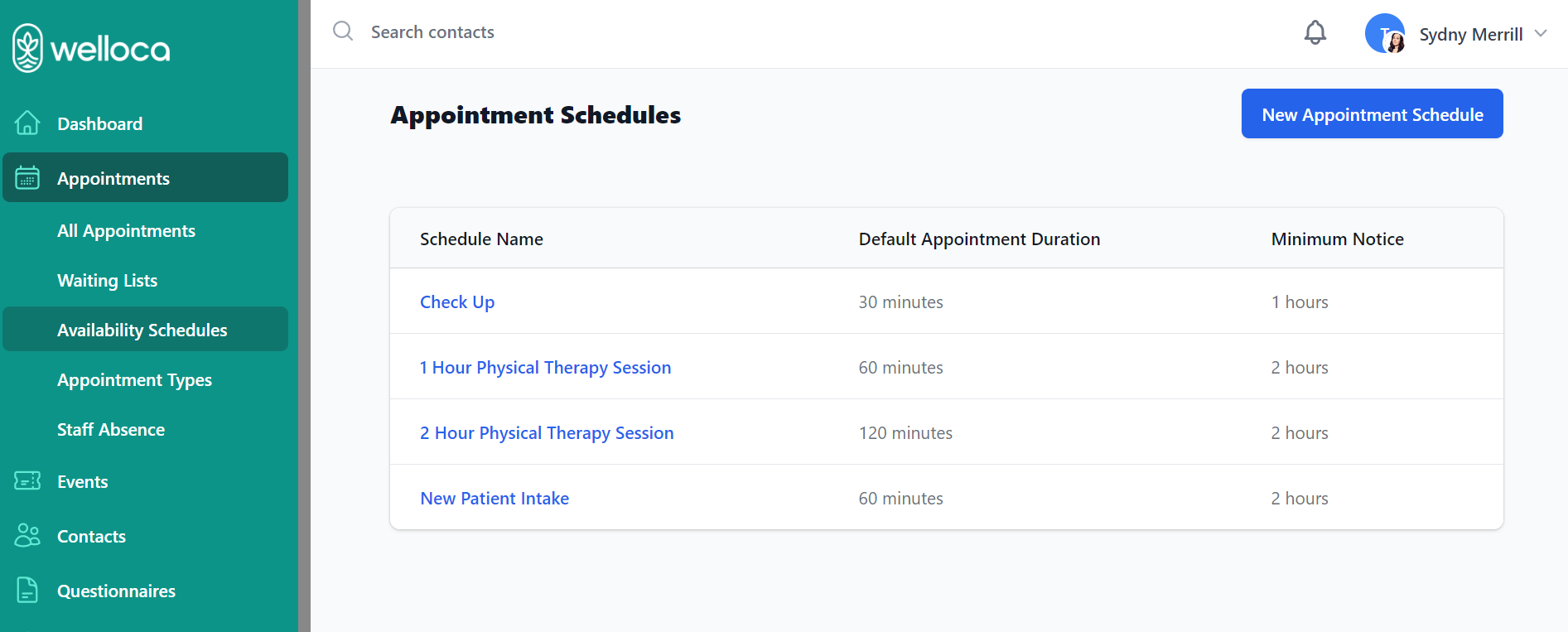
Click on Availability Schedules in the sidebar to open the Appointment Schedules page, where you can set specific availability schedules for different types of appointments. Appointment Schedules will appear as available appointment slots to patients in the online booking portal.
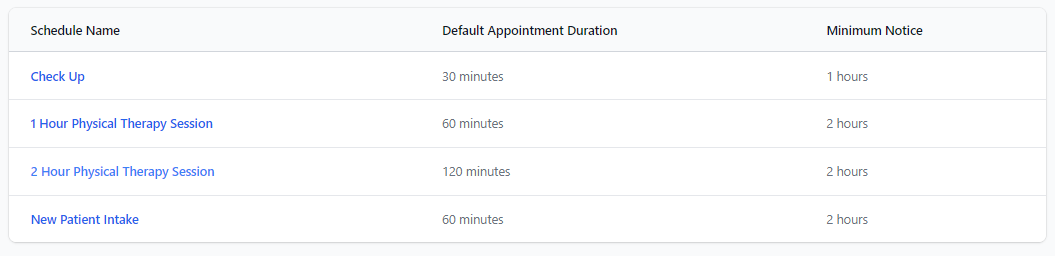
All Appointment Schedules are listed in a table, with the Schedule Name, Default Appointment Duration, and Minimum Notice.
How to Create a New Appointment Schedule
Click the New Appointment Schedule button located in the right-hand corner.

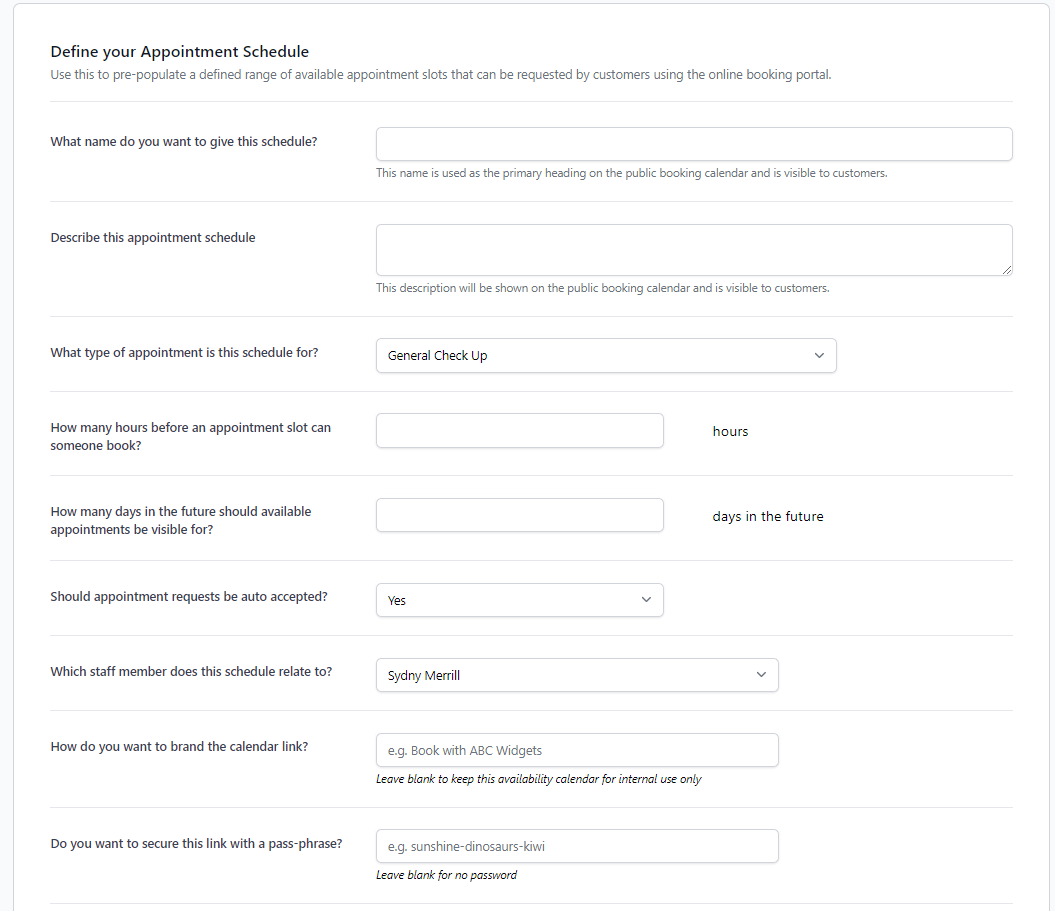
Now you can start creating an appointment schedule by filling out the form, which covers the following questions:
- What name do you want to give this schedule?
- Describe this appointment schedule?
- What type of appointment is this schedule for? – Choose an appointment type that you have already created.
- How many hours before an appointment slot can someone book?
- How many days in the future should available appointments be visible for?
- Should appointment requests be auto accepted?
- What staff member does this schedule relate to?
- How do you want to brand the calendar link – Choose an Appointment Schedule name that you want patients to see when booking.
- Do you want to secure this link with a pass-phrase?
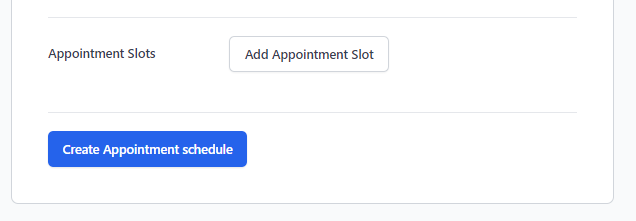
Once those questions are answered, you can start populating Appointment Slots by clicking Add Appointment Slot.
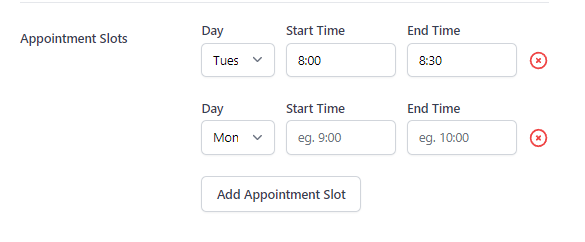
Then select the Day, appointment Start Time, and appointment End Time.
When you’ve created all the appointment slots you want to offer, click Create Appointment schedule.
Viewing Appointment Schedules
Once an Appointment Schedule has been created, it will appear in the list. Click a Schedule Name to view specific schedule information for that appointment.
You will see the core conditions for that specific Appointment Schedule, including the appointment Fee, average duration, minimum cancellation notice, limit to the number of days shown in the booking calendar, and if the bookings are automatically accepted or not.
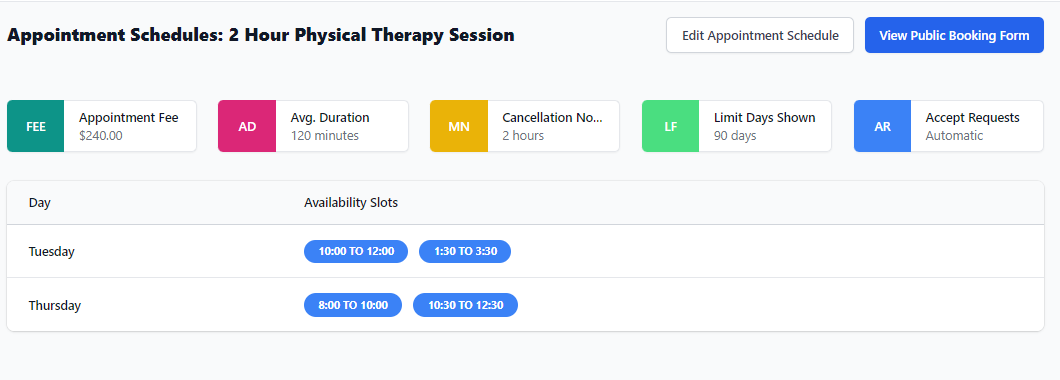
Underneath the appointment conditions, you can view the days of the week and Availability Slots for the Appointment Schedule.
View Public Booking Form
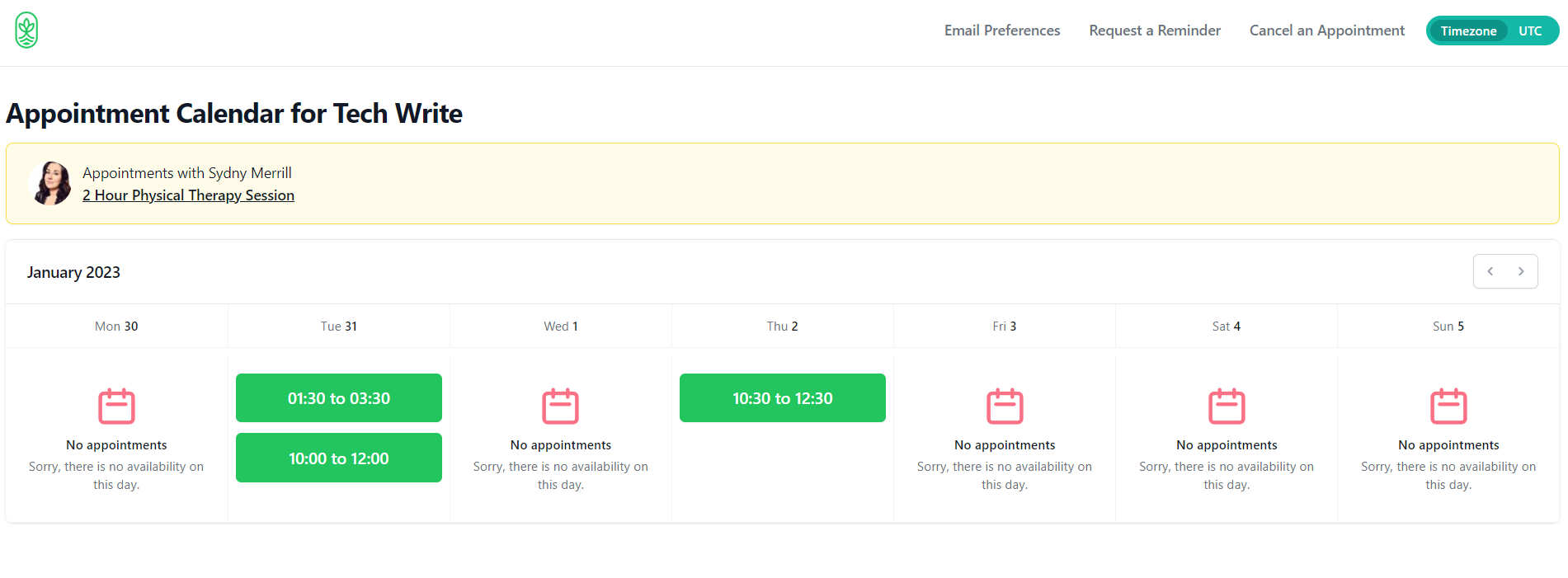
Click the View Public Booking Form button to take a look at the calendar view that is visible when patients are booking.
How to Edit an Appointment Schedule
If you need to make any changes to an existing Appointment Schedule, click Edit Appointment Schedule in the right-hand corner.
You can then change any of the fields that you filled out when you first created the Appointment Schedule. You can easily remove an Appointment Slot by clicking the red X icon.
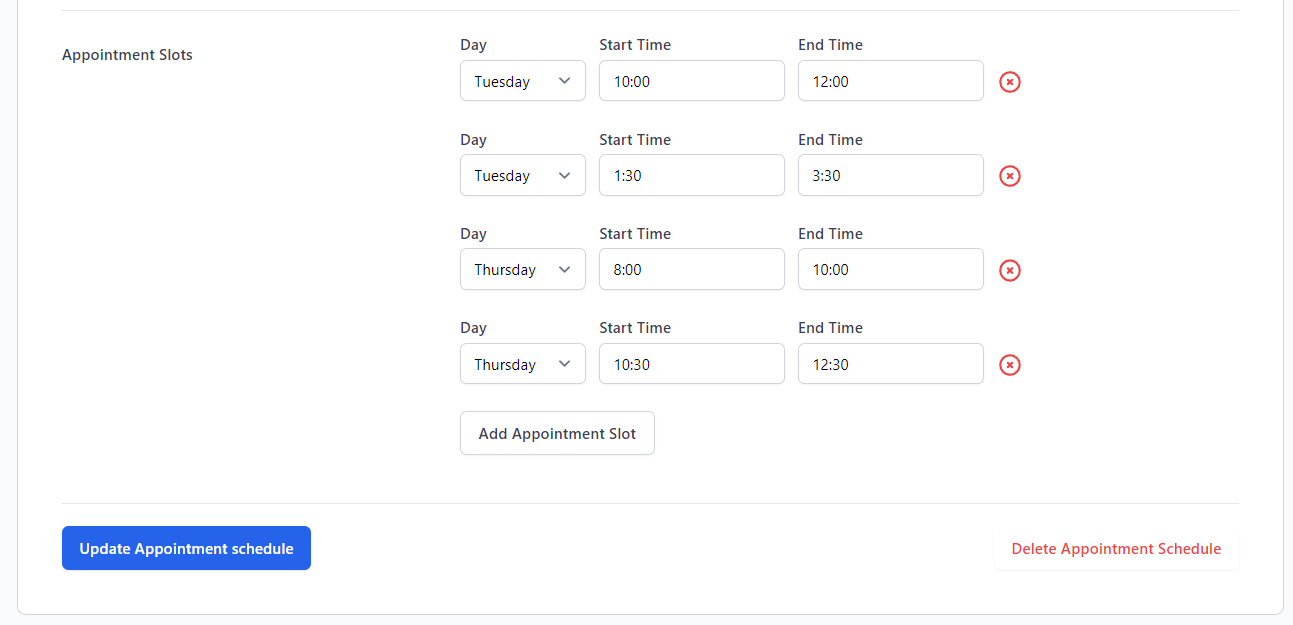
When you are finished making changes, click Update Appointment schedule.
Note: If you no longer need an Appointment Schedule, you can select Delete Appointment Schedule.