Select the Letters or Email tab from the main Correspondence page and then click the New Letter or New Email button. You will then need to fill out the following form and write the actual correspondence:
- What is the reference for this correspondence? – the name or identifier that will help you locate it later
- Who is this correspondence for?
- What type of correspondence is this? – you can swap between Letter and Email from this page if you change your mind on what kind of correspondence you want to send.
- What is the content? – use the rich text editor to create the content of the correspondence.
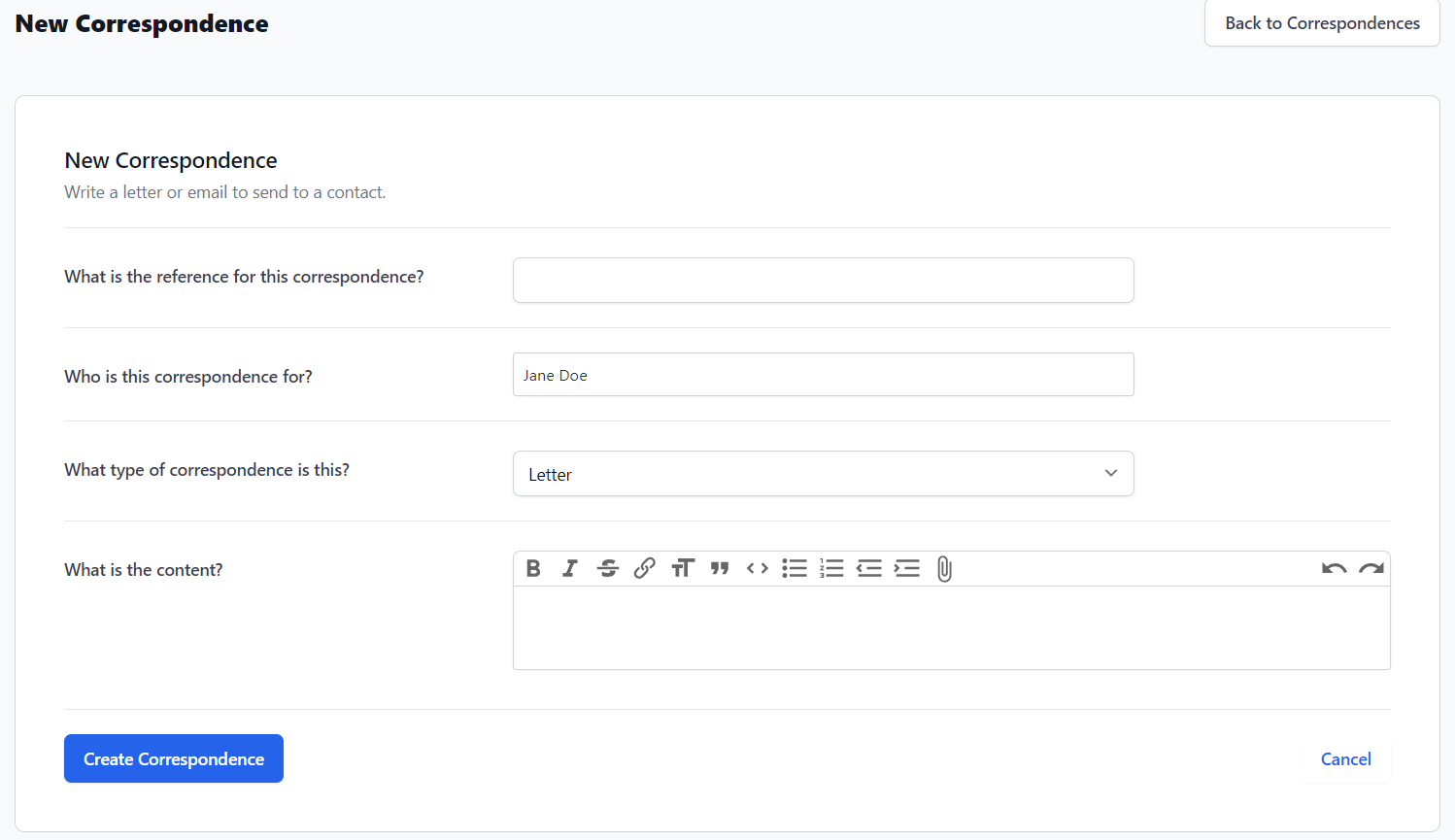
Click Create Correspondence when you are done drafting the letter or email.
You can now view more details and options about the correspondence you just created, such as:
- Edit Correspondence – Head back to the editor to make any necessary changes.
- Preview Letter – Check how the letter will look in PDF form.
- Download PDF – Create a PDF. This will prevent the letter from being editable, so make sure you are done making changes before proceeding with this option. You can then print the letter out and send it to your patient.
- Send to – If you create an Email, you can send the correspondence directly to the email address on file for that contact.
