Click the New Event button.
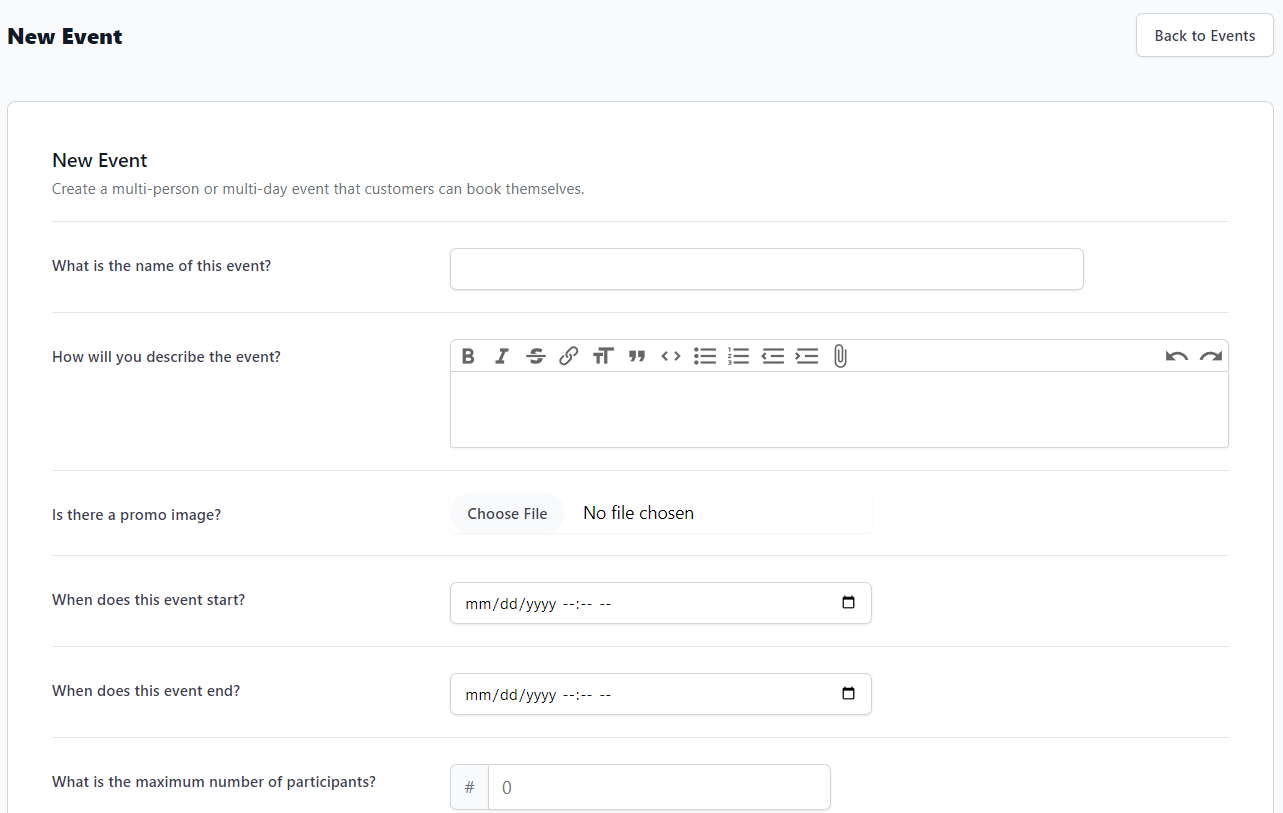
You can now start filling out the New Event form, which includes the following fields:
- What is the name of this event?
- How will you describe the event?
- Is there a promo image? – upload a promotional image to appear on the Booking Form
- When does this event start?
- When does this event end?
- What is the maximum number of participants?
- How much does this event cost?
- Should bookings be auto accepted?
- What type of event is this? – In Person or Online
- Where does this event take place?
- How do you want to brand the event link? – what event name do you want participants to see on the Booking Form
- Do you want to secure this link with a pass-phrase? – offer this event to only a specific subset of patients by providing them with the pass-phrase so they can access booking.
- What is the Status – Draft or Live
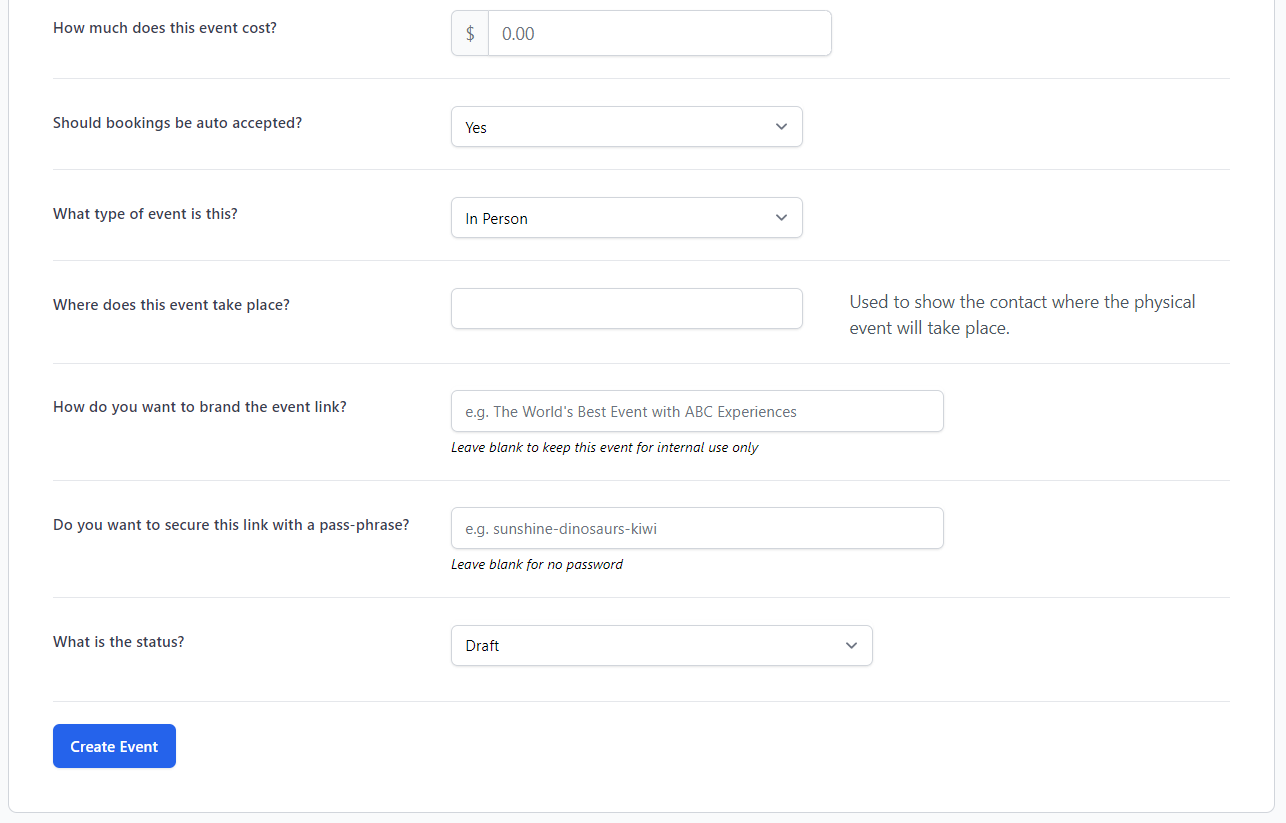
When you have finished filling out the form, click Create Event. Don’t worry about making it perfect, especially if it’s going to be listed as a Draft. You can easily edit events to make any necessary changes.
Once an event is created, it will appear in the events list:
